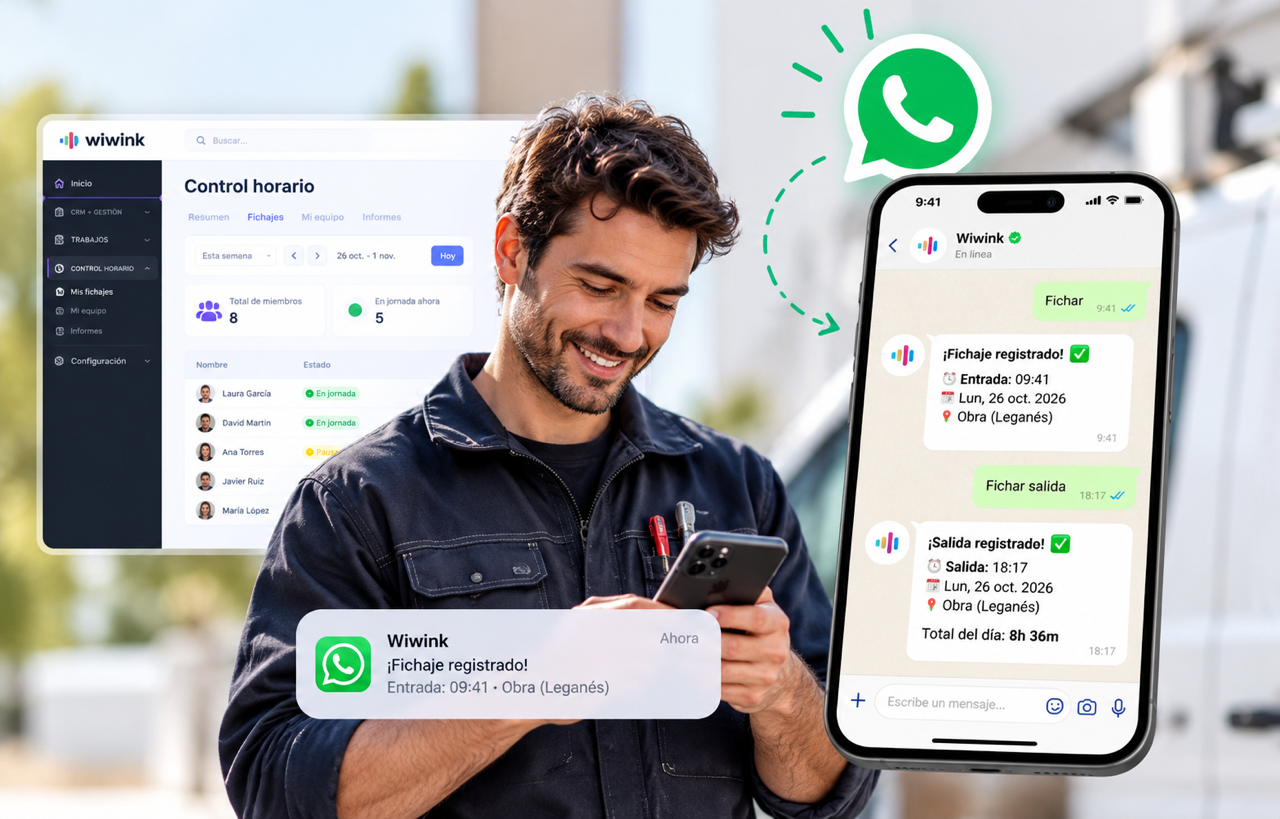
Clock in via WhatsApp: your team records the working day with a message
Your team types «entrada» in the wiwink chat and the clock-in is recorded in Schedule control, alongside all other records. No extra app to install if they already use WhatsApp.
✓Clock-in, breaks, resuming and clock-out from the chat
✓Clock-in confirmation in the conversation
✓Records centralised and identified in Schedule control
✓ 10-day trial✓ No credit card required✓ Support in Spanish
Clocking in should not depend on being at the office
WhatsApp brings time tracking to your team, wherever they are, and keeps the information in wiwink Schedule control.
A channel your team already knows
To clock in, open the conversation with Fichaje wiwink and send the right command.
Every moment of the working day, with a message
Clock in, start a break, resume work or clock out from the chat.
Designed for mobile teams
Your team can send their clock-ins via WhatsApp when working at different locations.
Everything stays in the same Schedule control
View WhatsApp clock-ins alongside all the others and see how each one was recorded.
Clock in via WhatsApp without leaving your Schedule control
Your team clocks in from a conversation and you view the records, working days and the rest of your staff information in wiwink.
Schedule control
Module added to CRM + Business Management
Your team clocks in via WhatsApp or from wiwink; all records are centralised in Schedule control.
👥 Users with access to clocking and absences only: €2.50/month per person. 20% discount from 5 users.
Includes
Clock in from wiwink or WhatsAppSecure, tamper-proof records kept for 4 yearsComplies with Spanish Royal Decree-law 8/2019
Clocking in via WhatsApp
Clocking in is as easy as sending a message
From the Fichaje wiwink chat, the employee sends a command and receives a confirmation reply. Records go to Schedule control alongside clock-ins made from wiwink.
entrada or in to record the start of the working day
pausa to start a break and reanudar to get back to work
salida or out to record the end of the working day
estado to check the current working day and ayuda to show the commands
The administrator adds to the employee’s profile the same number they use on WhatsApp, with its international prefix. The employee then saves the Fichaje wiwink number and opens the conversation to get started.
Register the phone in Schedule control → My team → Team management
Use a different number for each employee and check it matches their WhatsApp number
Find the Fichaje wiwink number in Preferences → Schedule control → General
Open the conversation, send ayuda and check the list of available commands
Open the conversation with Fichaje wiwink and send a message to record each moment of the working day. The reply confirms the clock-in.
1
Clock in
Send entrada or in to record the start.
2
Break
Send pausa when your break starts.
3
Resume
Send reanudar when you get back to work.
4
Clock out
Send salida or out when you finish.
For mobile teams
Useful for people who work at different locations, such as maintenance, delivery, installation or field service teams. If the company enables geolocation, it is requested when clocking in and out; never for breaks.
Check your working day
Send estado to check today’s working day or ayuda to see the available commands. If you need to correct a clock-in, do it from wiwink.
How to enable WhatsApp clock-in
The company must have Schedule control. The administrator registers the employee’s phone —with its international prefix— in Schedule control → My team → Team management and sets up geolocation, if they want to use it, in Preferences → Schedule control → General. The employee then saves the wiwink clock-in number, available in that same section, and writes from the same registered phone.
WhatsApp for teams working at different locations
⚡Clock in from the chat, records in Schedule control
A practical way to bring time tracking to installation, cleaning, maintenance, construction and other mobile service teams.
Installations and electrical workCleaning and maintenanceConstruction and renovationsField services
Your team sends their commands via WhatsApp; clock-ins are viewed in the Schedule control module.
Adapt wiwink to your business
Pay annually and save 20% on CRM, modules and users
Enable JavaScript to calculate modules and users. Base prices and sign-up links remain available.
Basic
CRM + Business ManagementVerifactu
1 user included
Basic does not include modules: for Schedule control or Works users, choose Adapta or Pro.
CRM · Boost your sales
✓Contacts
✓Quotes
✓Tasks
✓Products and services
Management · Save time and money
✓Verifactu
✓Electronic invoicing
✓Clients
✓Automatic invoicing
✓Bank remittances and online payments
✓Client portal
✓Suppliers
✓Purchase orders
✓Delivery notes
✓Proforma
✓Expenses · scanning
Includes
✓Unlimited invoices per year
✓Unlimited recurring invoices
✓Custom roles
⚡CRM automationsIncluded▾
CRM-only automations. To automate across modules, choose Adapta.
The chat is used to send commands; Schedule control gathers the records and lets you view them on the platform.
Clock in from the chat
Record clock-ins, breaks, resumptions and clock-outs using the commands available on WhatsApp.
Channel identification
Clock-ins made via WhatsApp are identified as such in Schedule control.
Optional geolocation
If the company enables it, the location is requested when clocking in and out, not when starting or resuming a break.
View from wiwink
Employees can view their records in Schedule control → My area → My clock-ins.
Corrections from the platform
If a record needs correcting, it is handled from wiwink, not from the chat.
Designed for mobile teams
An option for installation, cleaning, maintenance, construction and field service teams.
Frequently asked questions about clocking in via WhatsApp
How to set it up, use the commands and view the records.
What does an employee need to clock in via WhatsApp?
The company must have Schedule control. The administrator registers the employee’s phone, with its international prefix, in Schedule control → My team → Team management. The employee must write from that same WhatsApp number.
How do you start clocking in?
The employee saves the Fichaje wiwink number shown in Preferences → Schedule control → General, opens the conversation and sends a command. They can type “ayuda” to see the available commands.
Which commands can I send?
entrada or in to start; pausa and reanudar to manage a break; salida or out to finish; estado to check the working day; and ayuda to see the list.
Where do clock-ins appear?
In Schedule control, alongside records made from wiwink. WhatsApp clock-ins are identified as such.
Can geolocation be enabled?
Yes. The company can enable it in Preferences → Schedule control → General. When enabled, the location is requested with clock-ins and clock-outs, but not with breaks.
How do I view or correct a clock-in?
Employees view their records in Schedule control → My area → My clock-ins. Corrections are made from wiwink, not from the WhatsApp conversation.
Can I combine WhatsApp with clock-ins from wiwink?
Yes. Clock-ins made via WhatsApp are centralised alongside records made from wiwink in Schedule control.
Your team already knows how to use WhatsApp. Now they can clock in with it too.
Centralise your team’s working-day records in wiwink Schedule control.